
Internet Speed for IPTV on Multiple TVs: A Practical Buying Guide
Before paying for a multi-screen IPTV plan or upgrading your broadband, separate two questions: does the subscription permit the screens, and can your home connection deliver their streams reliably? Buying extra connections does not increase internet speed. A faster internet package does not add permission for another television.
Commercial disclosure: we promote services related to this website. This is a planning guide, not a speed test or independent provider ranking. Examples below are hypothetical, and a service's actual requirements must be confirmed before purchase.
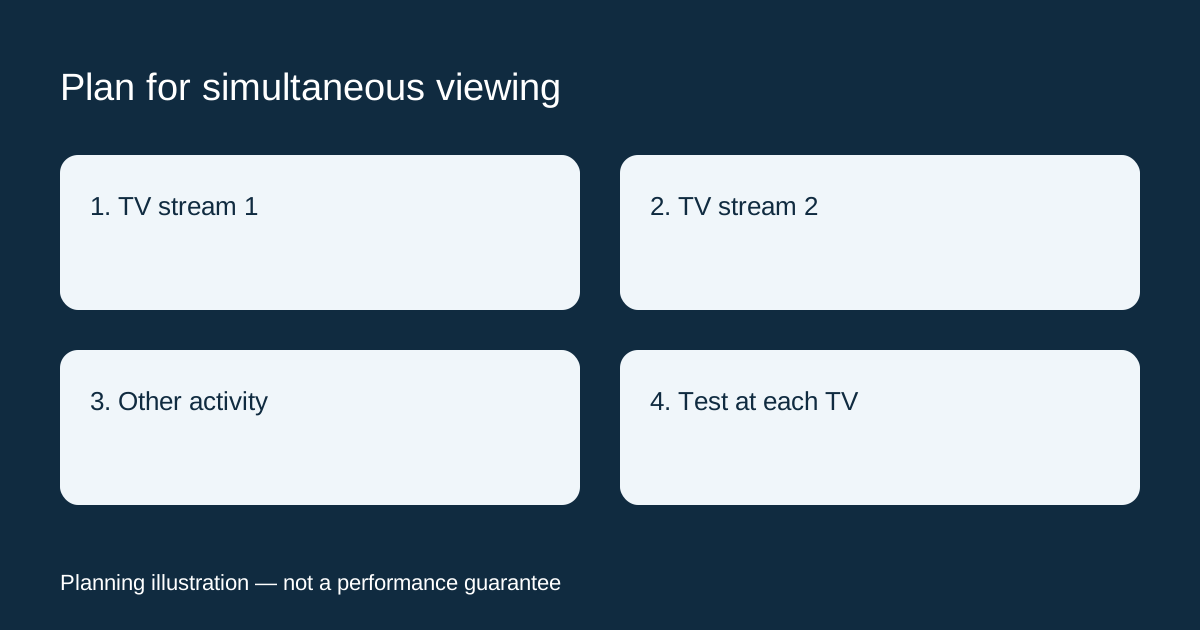
Quick answer: how much speed do two TVs need?
There is no single reliable figure for every IPTV service. Add the requirements for the streams that will run together, account for other internet activity, and test the connection where each television is used. Resolution, encoding and the service's delivery system can change demand. Use the provider's current guidance for the exact quality setting you select.
Use a published benchmark carefully
Netflix's speed guidance recommends a stable connection of at least 3 Mbps for 720p, 5 Mbps for 1080p and 15 Mbps for 4K. These are Netflix's figures, not universal IPTV requirements and not proof that another seller can deliver the same quality at the same speed.
For a planning example only, two streams each requiring 5 Mbps total 10 Mbps before other activity. If one instead requires 15 Mbps, the two add to 20 Mbps. The arithmetic is useful; the inputs need to come from the service you will actually use. Do not turn a benchmark into a guaranteed subscription recommendation.
Build a household demand worksheet
- Living-room TV: intended quality and stated connection requirement.
- Bedroom TV: intended quality and whether it plays at the same time.
- Other activity: video calls, downloads, backups and other viewing.
- Subscription allowance: permitted simultaneous streams and household rules.
- Test result: date, location, connection type and observed interruptions.
Count active playback rather than every device registered to the account. A television that is switched off is not playing another stream. On the other hand, a background download may compete for bandwidth even when nobody is watching that device. Leave room for normal household use instead of planning around an otherwise idle connection.
Test where the TV actually connects
A speed result on a phone beside the router may not represent a television several rooms away. If your streaming device offers a network test, use it. Otherwise, testing another device in the same location can provide context, but label it as a different device rather than treating it as an exact measurement of the TV.
Netflix's help page also explains its app's network check and links to Fast.com. Those measurements are useful observations, not proof of the performance of every streaming server. Record more than one normal viewing session. Do not rely on the single highest number you can produce.
Compare Wi-Fi and Ethernet without changing everything
If your television or streaming box supports an Ethernet connection and you can safely connect it, compare the same playback session using a wired route. Keep the device, content and quality setting as similar as possible. This helps isolate the local wireless part of the connection; it does not establish that the provider is always reliable.
If a cable is impractical, try the normal supported network settings and check the device manufacturer's instructions. Do not buy an adapter without checking compatibility. Avoid making several changes at once: when you change the app, network and video quality together, you cannot tell which change affected the result.
What different symptoms can tell you
Only the second TV stops when both start
Check the purchased connection allowance and account rules before upgrading broadband. An account limit may produce an error even when plenty of bandwidth is available. See our family and multi-screen plan guide for the distinction between registered devices and simultaneous streams.
One room struggles while another works
Compare the devices and their local connections. This pattern gives you a reason to investigate the room or device, but it is not a diagnosis by itself. Record error messages and whether the same problem occurs at other times.
One programme fails while other streams work
A higher broadband tier is not automatically the answer. Ask the service about the specific stream and provide the time, device and error. Avoid sending login details in a public support thread.
Test before paying for a longer plan
Ask whether an available trial permits your required number of screens. If it permits only one, it cannot demonstrate simultaneous playback on two TVs. Keep the trial within the service's rules and evaluate the actual setup you intend to purchase. Our IPTV free trial guide gives a starting checklist.
When comparing commercial options, check TereaTV plans or VocoTV monthly options and ask for the exact connection allowance and supported devices. Neither link is a claim that the plan provides a particular speed or that a trial is always available. Compare the full cost using our subscription price guide.
Frequently asked questions
Does 100 Mbps guarantee buffer-free IPTV?
No. An advertised broadband tier does not establish the speed at the device or the reliability of a specific stream. Check the account limits, network conditions, app and service.
Will a VPN always improve streaming?
No. Do not buy one as a guaranteed buffering fix. It changes the connection route and may introduce other limitations; check the service's rules and investigate the cause first.
What should I upgrade first?
Start with evidence. Confirm permitted screens, test the existing setup and identify the limitation before paying for a new plan, router or broadband tier. An upgrade should address a demonstrated need.